Chart position — tracked daily by LaunchShots
Screenshot style breakdown
Sampled from 5 of TO-FU Oh!SUSHI's App Store screenshots — background, accent and theme, measured by LaunchShots (not something Apple publishes).
#A45414 bg
#B06B34
#E4BC6C accent
#FFFFFF text
Screenshots
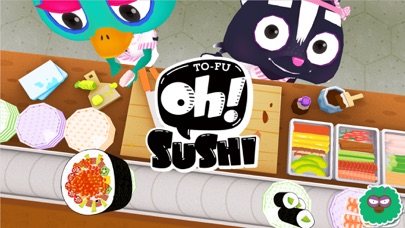
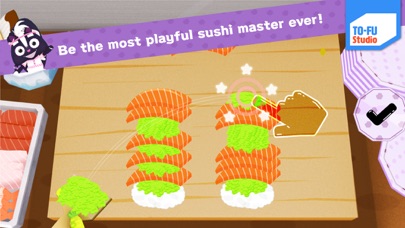
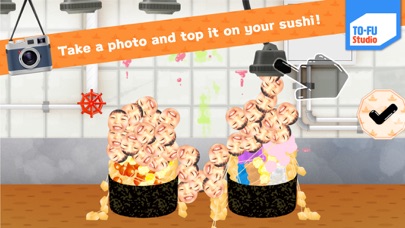


iPad screenshots
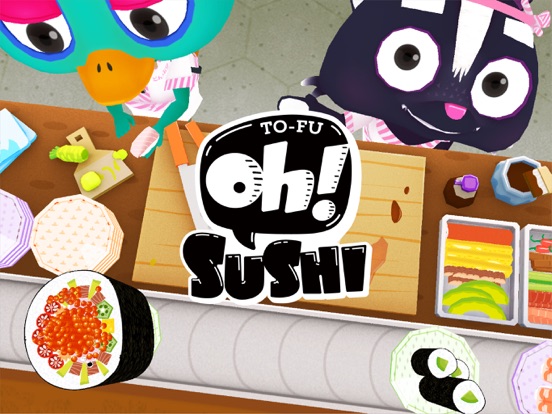
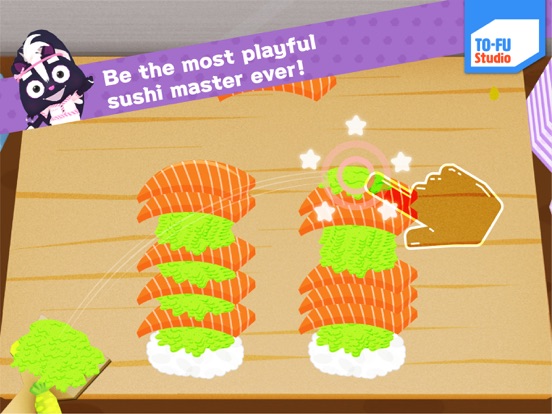
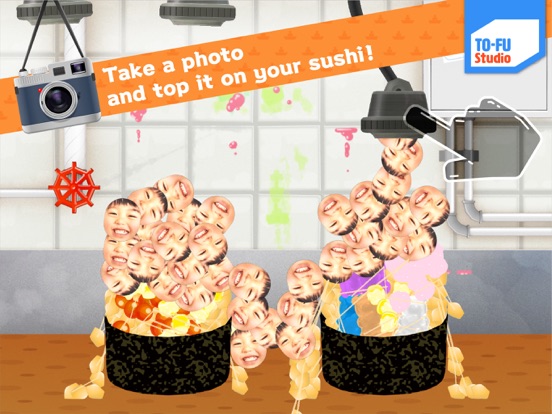


Icon palette
About this app
You are the veritable sushi master! Prepare your own fun sushi with “Daizu” the skunk! This app is designed to allow children to be creative by decorating their original sushi. Serve your delicious, mysterious or impossible sushi to the people of “Tofu Island”! How about creating sushi that is totally original and serve it to your beloved guests? Spice it up with tons of wasabi or even sprinkle chocolate and gummy bears for those sweet lovers. Feel free to make any kind of sushi you like at OH!Sushi and have your adventurous guests try them! Features - Guests will put in sushi orders but you don’t have to follow them. They love you and will enjoy whatever you make. - Can make hundreds of different Nigiri, Rolls and Gunkan sushi in 3 specialized kitchens. - In the Nigiri kitchen, freshness is key. So you start from catching the fish in the aquarium, then cut it up and put it on t…
App details
What you can learn from TO-FU Oh!SUSHI
Every shipping app on the App Store has gone through the same decisions you're working through right now: which screenshot goes first, what caption sits over it, which device frame to show, what color the background should be. The 10 screenshots above are TO-FU Oh!SUSHI's answers to those questions — they're public, they're real, and they made it through Apple's review.
What the numbers say: TO-FU Oh!SUSHI runs a mixed light-and-dark set where the background shifts from screenshot to screenshot (first shot #A45414) — each image has to stand on its own, so the captions carry more of the story. The accent colour we picked up, #E4BC6C, is the one to reuse for badges, arrows and highlighted words if you borrow this look. Hit Use this style to open the editor with these exact colours and drop your own screenshot in.
Notice the first screenshot in particular. It's the one users see in search results and on the product page, and it's where most apps spend their best caption and tightest design. Look at the proportion of background to phone, where the text sits, what one thing the image is trying to communicate.
Want to see how other Education apps approach the same problem? Browse more Education apps in the showcase.
Take what works into your own screenshots
Open LaunchShots and design your App Store & Google Play screenshots — pick a device frame, drop captions, ship in minutes. Free, in your browser.
Open the screenshot editor →Apps with a similar look
Closest background + accent colours among the listings we've analysed — useful when you want to see the same palette handled by a different team.