Chart position — tracked daily by LaunchShots
Screenshot style breakdown
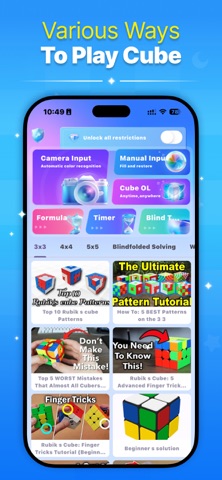
Sampled from 6 of RGB Cube Solver &Timer's App Store screenshots — background, accent and theme, measured by LaunchShots (not something Apple publishes).
#2C94FC bg
#49A2FC
#FCFC0C accent
#FFFFFF text
Screenshots




Icon palette
About this app
RGB Cube Solver &Timer, the ultimate application designed to transform you into a Cube solving expert. Mastering this iconic puzzle is a rare skill, but with Cube Solver, it's within your reach. Gone are the days of struggling with complex algorithms – now, your trusty Cube solver fits right in your pocket. With Cube Solver, solving the Cube becomes a breeze. Choose between manual input for precise control or advanced camera input, allowing you to effortlessly capture each side of the cube. Once all sides are inputted, our powerful algorithm springs into action, delivering a solution to even the most challenging configurations. Follow the step-by-step guidance of our magical puzzle solver and conquer any combination with ease. Plus, explore a range of cube sizes, from 2x2, 3x3, 4x4, 5x5 and 6x6, and enjoy customizable options to suit your preferences. Join over 3 million cubers who h…
App details
What you can learn from RGB Cube Solver &Timer
Every shipping app on the App Store has gone through the same decisions you're working through right now: which screenshot goes first, what caption sits over it, which device frame to show, what color the background should be. The 8 screenshots above are RGB Cube Solver &Timer's answers to those questions — they're public, they're real, and they made it through Apple's review.
What the numbers say: RGB Cube Solver &Timer runs a dark set with one background colour (#2C94FC) carried across every screenshot — the listing reads as a single poster when the shots sit side by side in search results. The accent colour we picked up, #FCFC0C, is the one to reuse for badges, arrows and highlighted words if you borrow this look. Hit Use this style to open the editor with these exact colours and drop your own screenshot in.
Notice the first screenshot in particular. It's the one users see in search results and on the product page, and it's where most apps spend their best caption and tightest design. Look at the proportion of background to phone, where the text sits, what one thing the image is trying to communicate.
Want to see how other Games apps approach the same problem? Browse more Games apps in the showcase.
Take what works into your own screenshots
Open LaunchShots and design your App Store & Google Play screenshots — pick a device frame, drop captions, ship in minutes. Free, in your browser.
Open the screenshot editor →Apps with a similar look
Closest background + accent colours among the listings we've analysed — useful when you want to see the same palette handled by a different team.