Chart position — tracked daily by LaunchShots
Screenshot changes — detected by LaunchShots
Screenshot style breakdown
Sampled from 6 of Speaker Cleaner - Water Eject's App Store screenshots — background, accent and theme, measured by LaunchShots (not something Apple publishes).
#ECF4FC bg
#CFD6DD
#042C6C accent
#111111 text
Screenshots

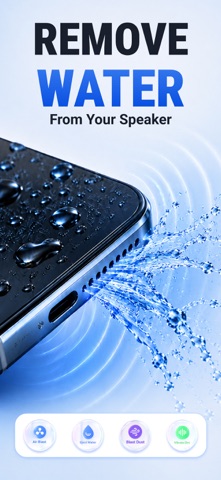


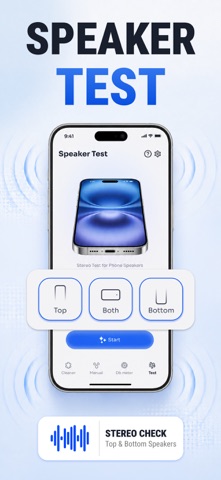


Icon palette
About this app
Dropped your phone in water? Is your speaker muffled, distorted, or too quiet? Speaker Cleaner – Water Eject uses specially designed soundwave technology and frequency tools to help remove trapped water, dust, and debris from your speakers. Whether your phone gets wet from rain, a workout, or an accidental splash, use this powerful water remover to help restore clearer, louder sound in just a few taps. KEY FEATURES: 1. Water Eject & Speaker Cleaner: Use specially tuned waves to help eject water trapped inside your speaker. Improve audio clarity and restore louder, cleaner sound with one tap. It's your ultimate water eject shortcut. 2. Frequency Generator & Clear Wave Modes: Generate custom frequencies and use multiple clear wave water eject cleaning modes to target water removal, dust buildup, and blocked speaker issues. Acting as an ultrasonic cleaner, choose the frequency that work…
App details
What you can learn from Speaker Cleaner - Water Eject
Every shipping app on the App Store has gone through the same decisions you're working through right now: which screenshot goes first, what caption sits over it, which device frame to show, what color the background should be. The 7 screenshots above are Speaker Cleaner - Water Eject's answers to those questions — they're public, they're real, and they made it through Apple's review.
What the numbers say: Speaker Cleaner - Water Eject runs a light set with one background colour (#ECF4FC) carried across every screenshot — the listing reads as a single poster when the shots sit side by side in search results. The accent colour we picked up, #042C6C, is the one to reuse for badges, arrows and highlighted words if you borrow this look. Hit Use this style to open the editor with these exact colours and drop your own screenshot in.
Notice the first screenshot in particular. It's the one users see in search results and on the product page, and it's where most apps spend their best caption and tightest design. Look at the proportion of background to phone, where the text sits, what one thing the image is trying to communicate.
Want to see how other Music apps approach the same problem? Browse more Music apps in the showcase.
Take what works into your own screenshots
Open LaunchShots and design your App Store & Google Play screenshots — pick a device frame, drop captions, ship in minutes. Free, in your browser.
Open the screenshot editor →Apps with a similar look
Closest background + accent colours among the listings we've analysed — useful when you want to see the same palette handled by a different team.