Chart position — tracked daily by LaunchShots
Screenshot style breakdown
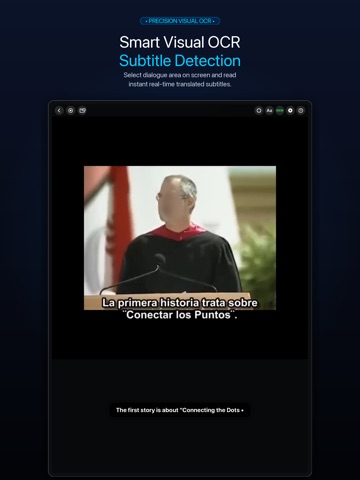
Sampled from 6 of Subtify: All in One Translator's App Store screenshots — background, accent and theme, measured by LaunchShots (not something Apple publishes).
#04040C bg
#27272E
#044C6C accent
#FFFFFF text
Reading the caption text from the screenshots in your browser…
Screenshots


iPad screenshots




Icon palette
About this app
Subtify: Universal AI Subtitle & Speech Translator Translate and dub books, games, movies, comics, or streams in real time. Works 100% offline on-device, or supercharge with Apple Intelligence & Gemini AI. - AI Translation: 100% private on-device Apple Neural Engine, Apple Intelligence (PCC), or Gemini AI. - Visual OCR & Smart TV Game-Screen Projection: Optical detection for on-screen dialogue with real-time subtitle projection directly onto your game screen on supported Smart TVs via GuleryuzTV or the built-in TV browser Picture-in-Picture method. - Speech STT: Real-time dialogue transcription with continuous history. - AI Live Dubbing: Studio-quality neural voices with smart audio ducking and background play. Zero latency, optional 100% offline mode with zero data usage, and complete privacy. CORE MODES: Book & Document Reader Import EPUB, PDF, DOCX, or TXT. CoreText pagination, In…
App details
What you can learn from Subtify: All in One Translator
Every shipping app on the App Store has gone through the same decisions you're working through right now: which screenshot goes first, what caption sits over it, which device frame to show, what color the background should be. The 18 screenshots above are Subtify: All in One Translator's answers to those questions — they're public, they're real, and they made it through Apple's review.
What the numbers say: Subtify: All in One Translator runs a dark set with one background colour (#04040C) carried across every screenshot — the listing reads as a single poster when the shots sit side by side in search results. The accent colour we picked up, #044C6C, is the one to reuse for badges, arrows and highlighted words if you borrow this look. Hit Use this style to open the editor with these exact colours and drop your own screenshot in.
Notice the first screenshot in particular. It's the one users see in search results and on the product page, and it's where most apps spend their best caption and tightest design. Look at the proportion of background to phone, where the text sits, what one thing the image is trying to communicate.
Want to see how other Utilities apps approach the same problem? Browse more Utilities apps in the showcase.
Take what works into your own screenshots
Open LaunchShots and design your App Store & Google Play screenshots — pick a device frame, drop captions, ship in minutes. Free, in your browser.
Open the screenshot editor →Apps with a similar look
Closest background + accent colours among the listings we've analysed — useful when you want to see the same palette handled by a different team.